


How to Enable Passkeys for GitHub Account#
Enabling a passkey for your GitHub account can provide an additional layer of security. Here are step-by-step instructions on how to do it.
Download Passkeys App
Before you can set up a passkey for your GitHub account, you'll need to download the Passkeys App from the Apple App Store on your phone. You can also click the button below to download it Download on the App Store.


Open Your GitHub Account Settings
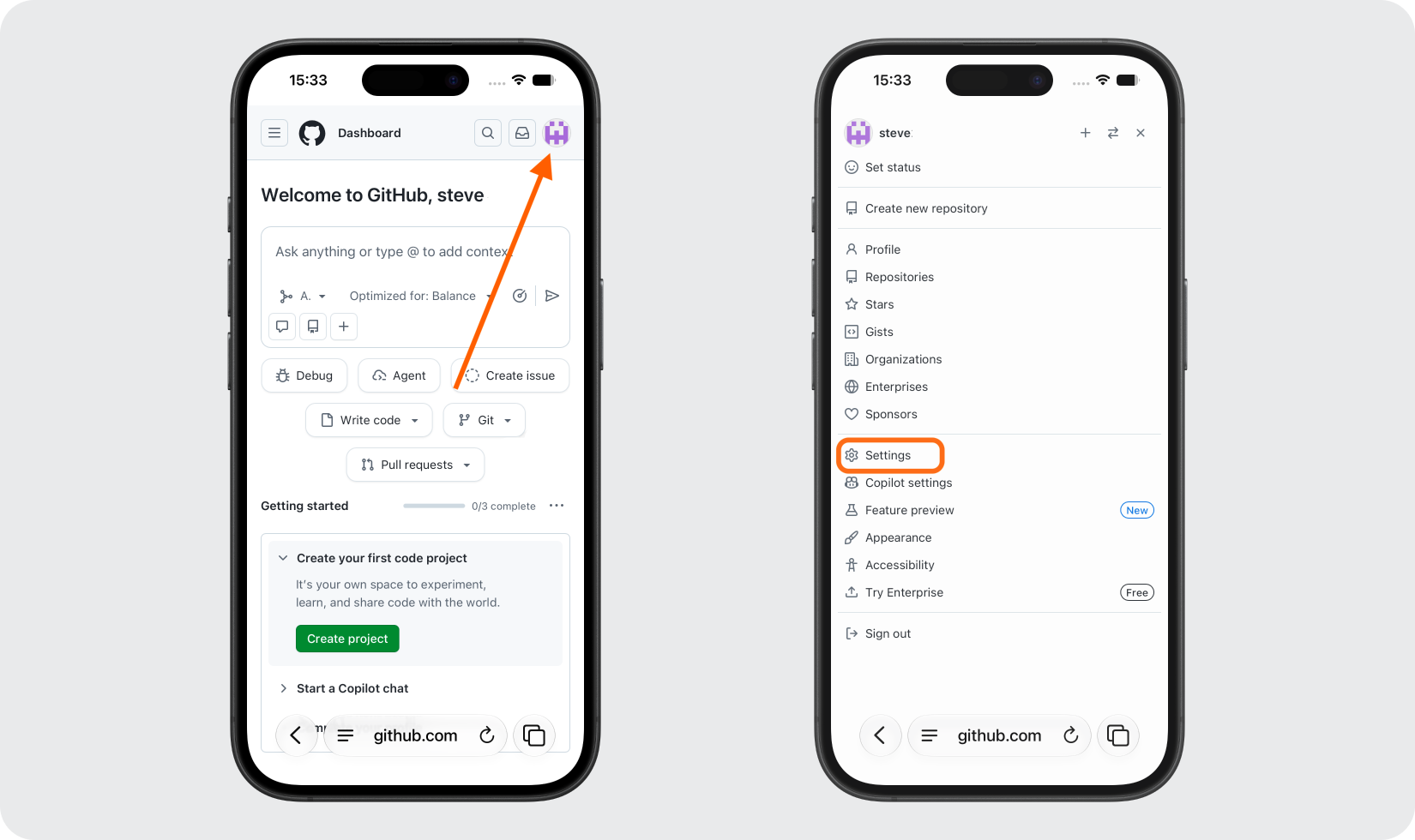
Open Safari or your preferred browser on your iPhone and sign in to your GitHub account. Tap your profile icon in the top right corner, then select Settings.
Open Your GitHub Security Settings
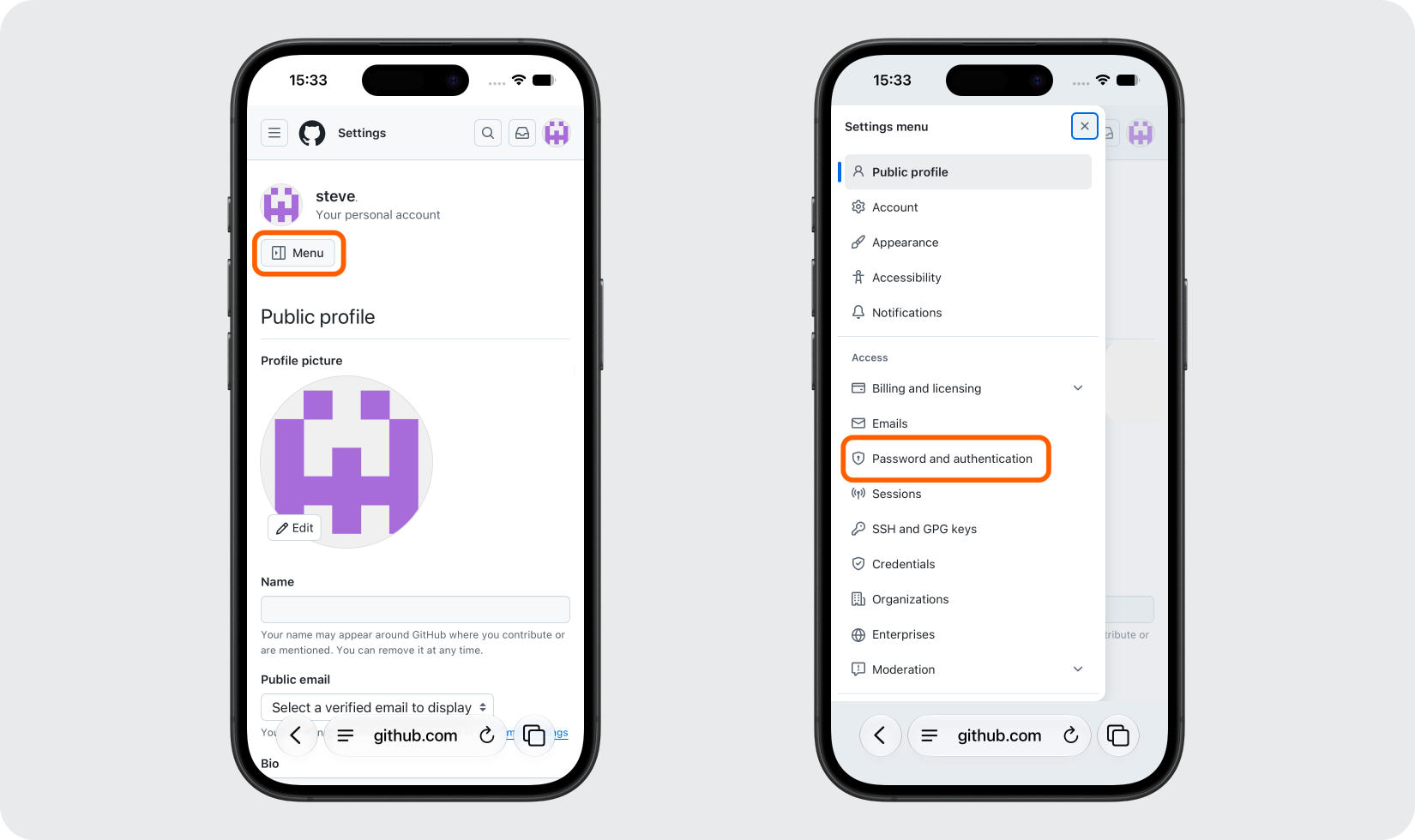
Under your account name, tap the Menu button, then select Password and authentication.
Open Your GitHub Passkey Settings
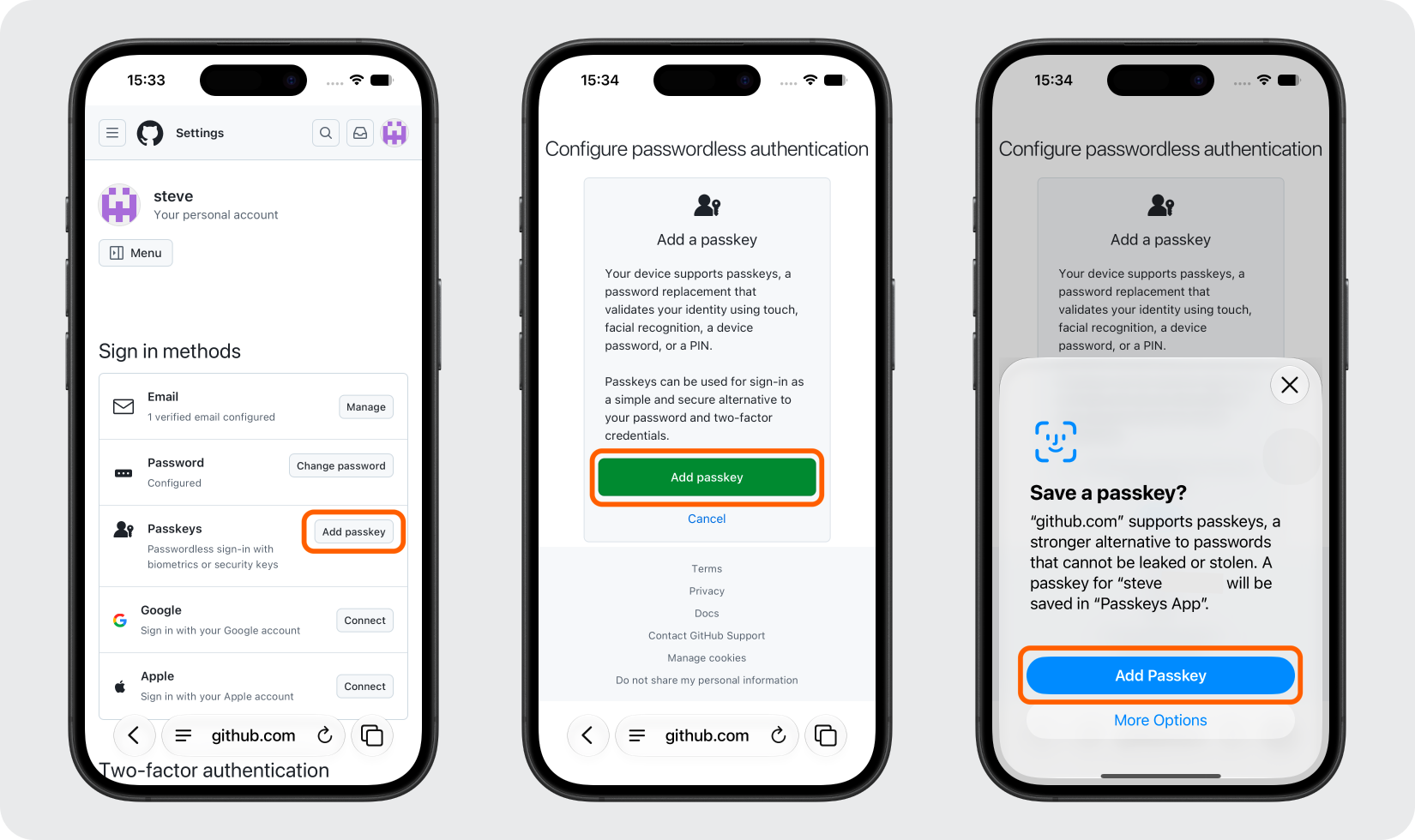
Scroll down to the Passkeys section and tap Add a passkey. Confirm by tapping Add Passkey, then select Add Passkey again on the next screen to continue.
Verify & Create Your Passkey
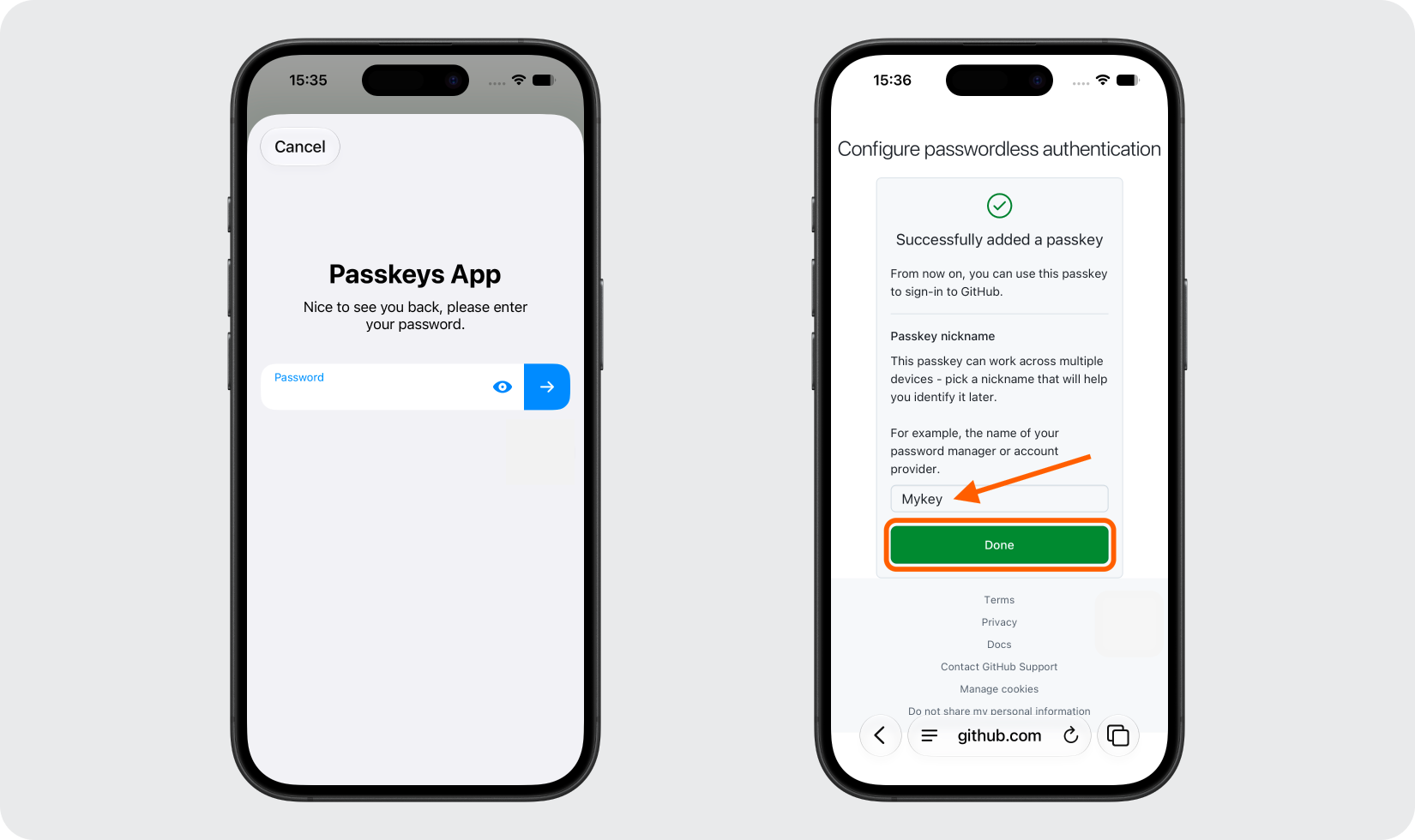
The Passkeys App will launch. Verify your identity using your Passkeys App password, Face ID, or Touch ID. Choose a name for your new passkey and tap Done.
Confirm Your Passkey
Once complete, your passkey will appear under the Passkeys section in your GitHub account settings. Your GitHub passkey will also be listed inside the Passkeys App.
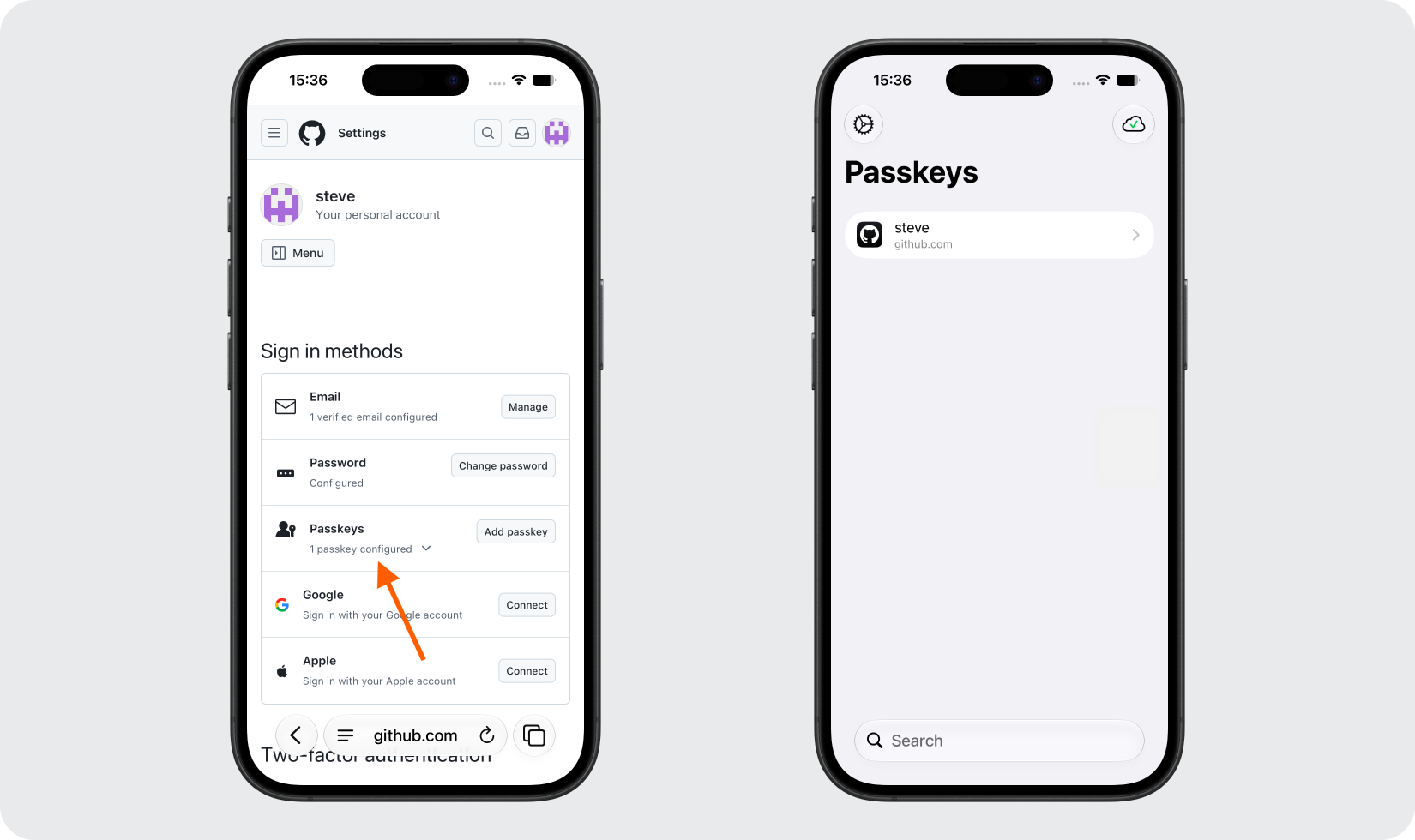
Done!
Congratulations! You have successfully set up your passkey for your GitHub account. From now on, you can use the Passkeys App when you would like to log in to your GitHub account.
You're all set! To learn more, visit the GitHub support page. Stay safe!
The information provided on this page is for educational purposes only and is intended to help users secure their accounts.
2Stable is not affiliated, associated, authorized, endorsed by, or in any way officially connected with GitHub, or any of its subsidiaries or affiliates.
All product names, trademarks, and registered trademarks mentioned are the property of their respective owners. Their use here is for identification and reference purposes only and does not imply any association or endorsement.
For any legal inquiries or concerns regarding the content of this page, please contact us.