


How to Enable Passkeys for Your PlayStation Account#
Enabling a passkey for your PlayStation account can provide an additional layer of security. Here are step-by-step instructions on how to do it.
Download Passkeys App
Before you can set up a passkey for your PlayStation account, you'll need to download the Passkeys App from the Apple App Store on your phone. You can also click the button below to download it Download on the App Store.


Open Your PlayStation Account Settings
Open the PlayStation app on your phone and tap Play at the bottom of the screen. Tap the gear icon in the top right corner to access your settings.
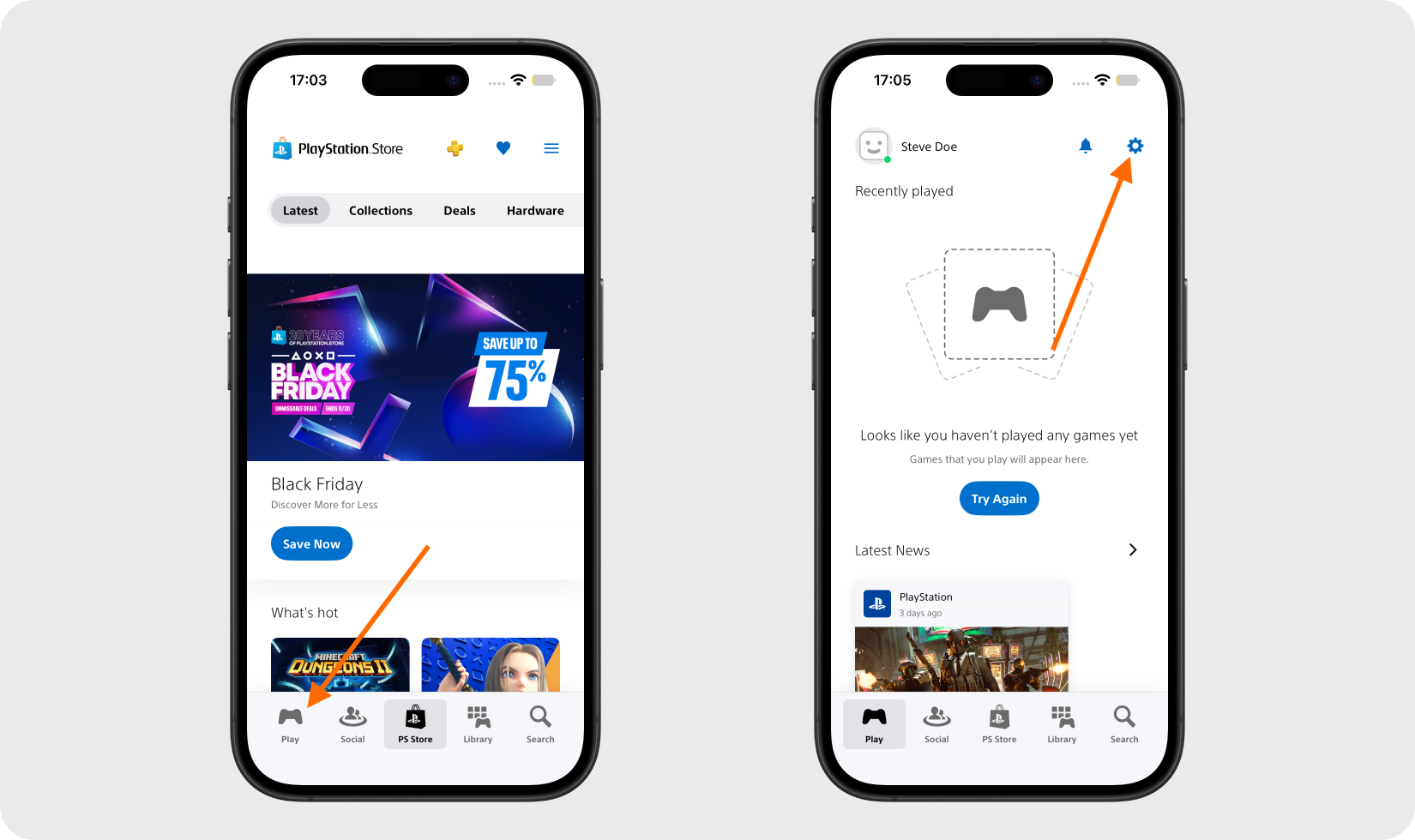
Open Your PlayStation Security Settings
Select Your Information, then tap Security. When prompted with the message "You will go to another page.", tap Continue to confirm.
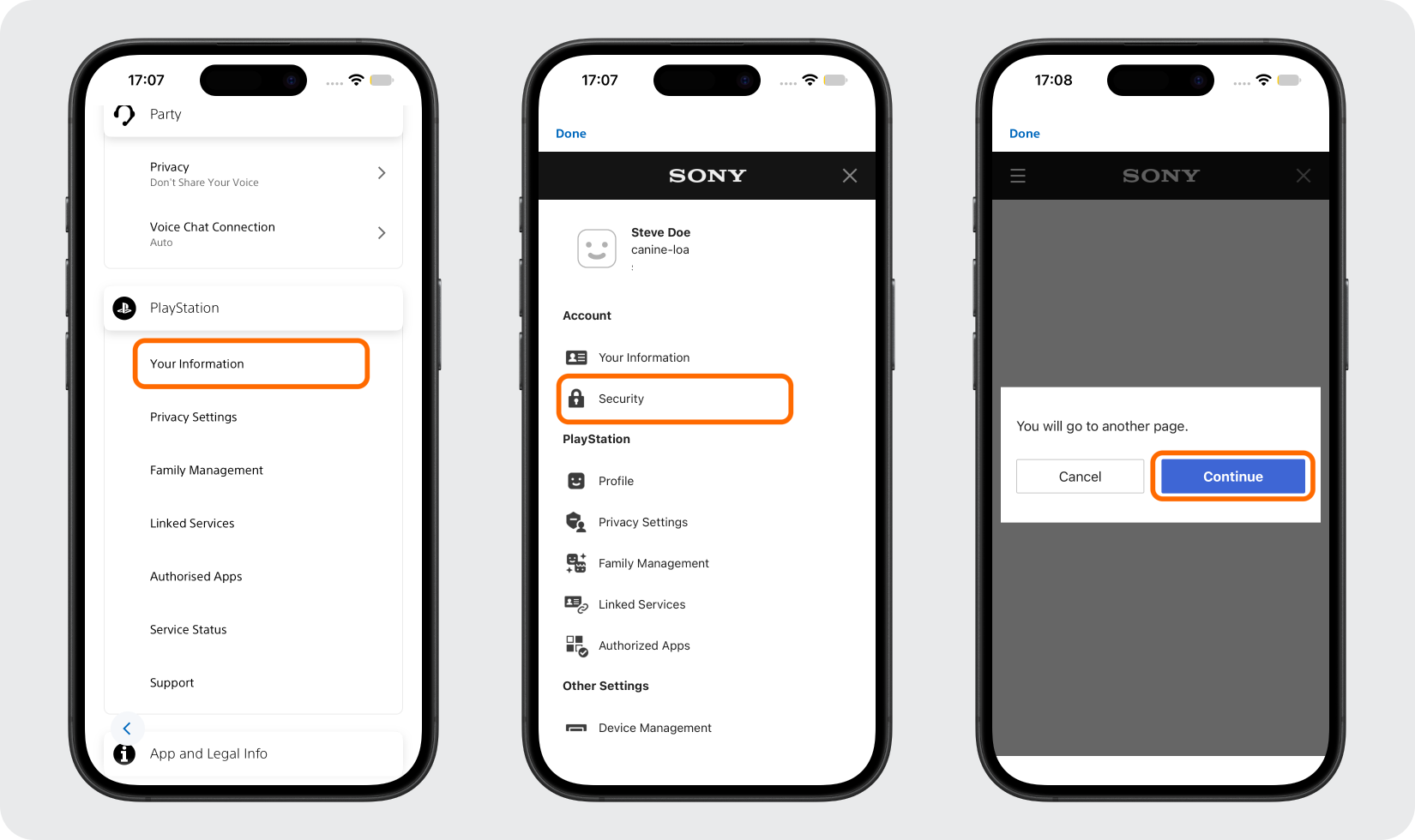
Open Your PlayStation Passkey Settings
Under the Sign In with Passkey section, tap Edit, then tap Create a Passkey to continue.
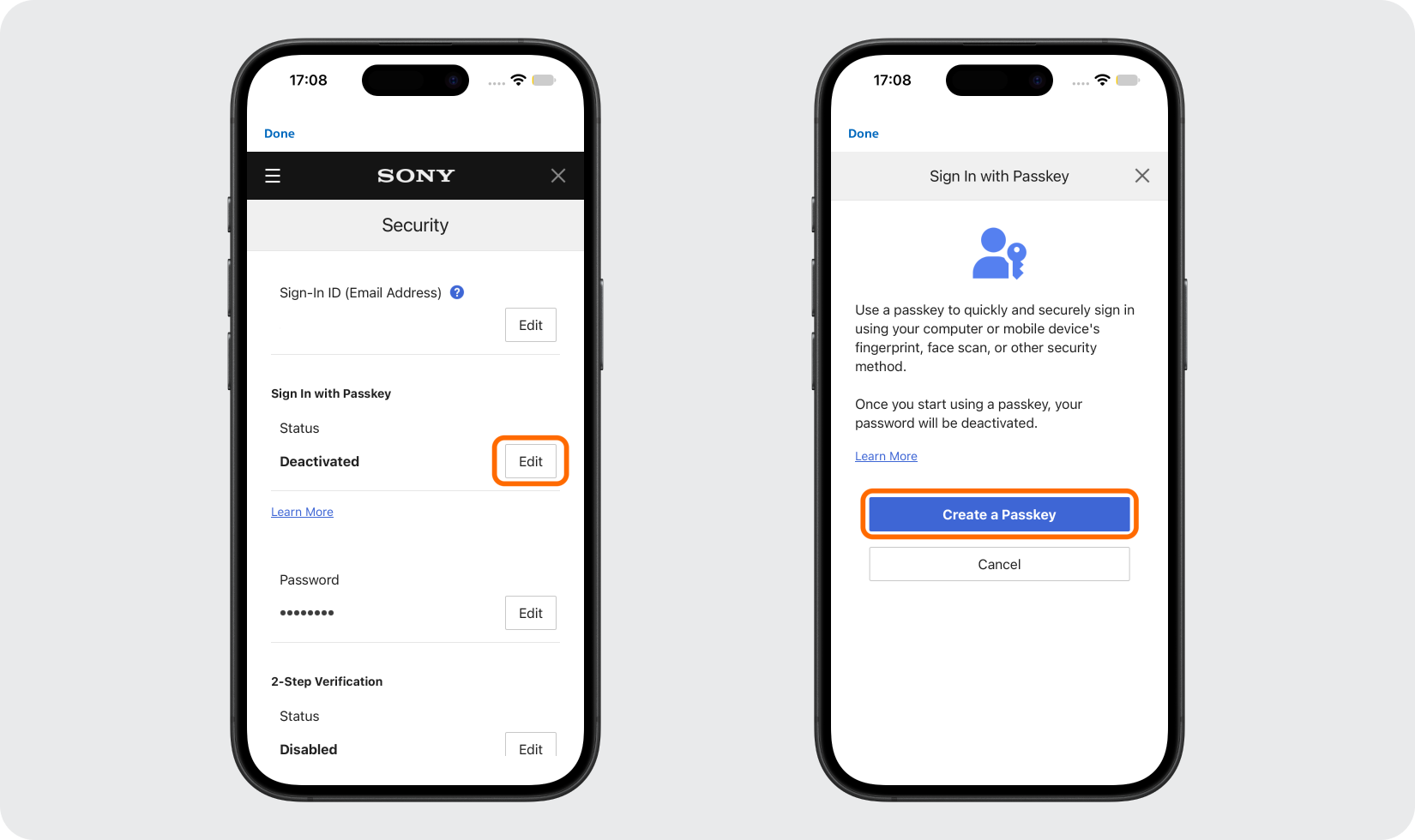
Verify & Create Your Passkey
On the next screen, tap Add Passkeys. The Passkeys App will launch. Verify your identity using your Passkeys App password, Face ID, or Touch ID. Then tap OK to complete the setup. If prompted, sign in to your PlayStation account again using your newly created passkey.
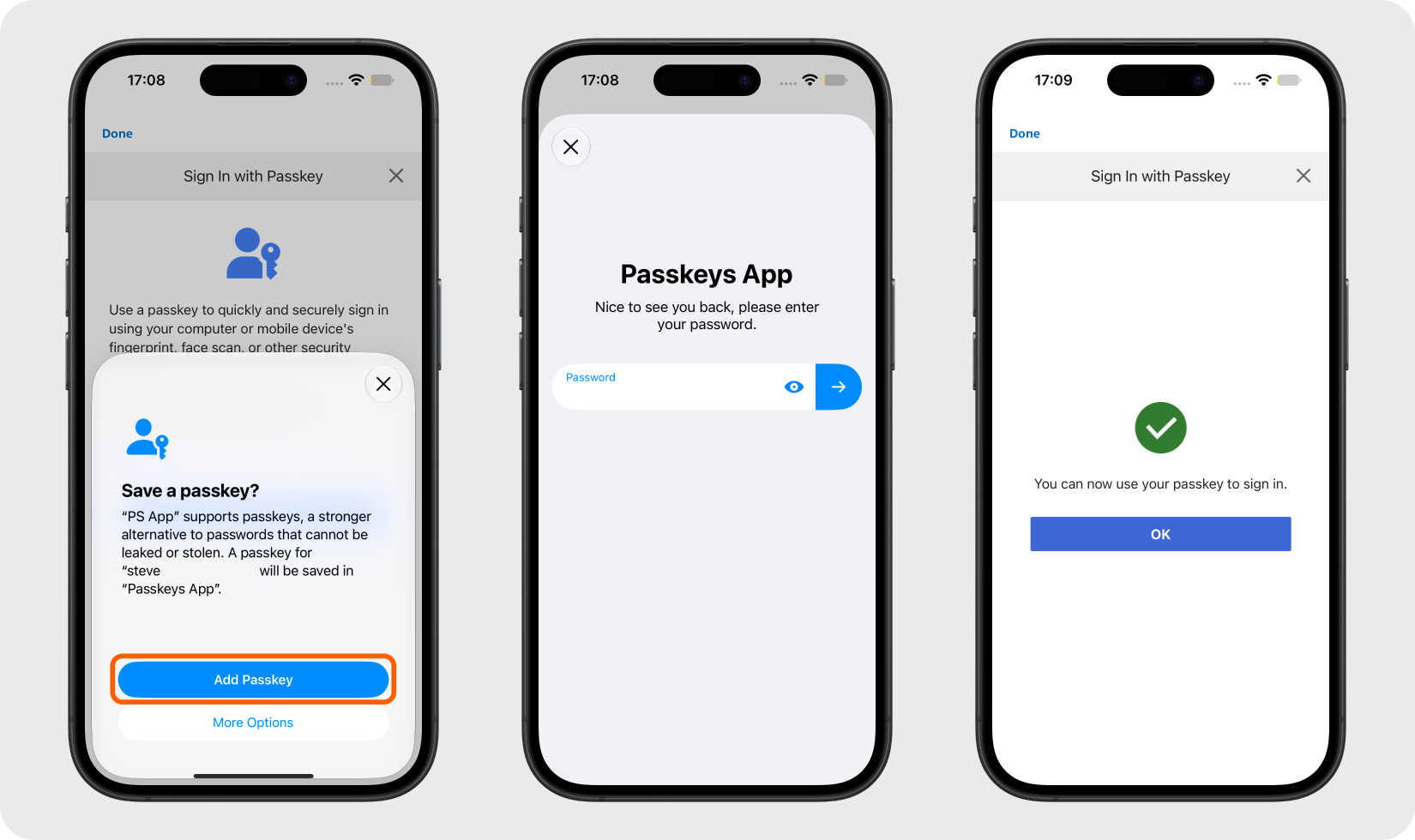
Confirm Your Passkey
Once complete, your passkey will appear under the Passkeys section in your PlayStation account settings. Your PlayStation passkey will also be listed inside the Passkeys App.
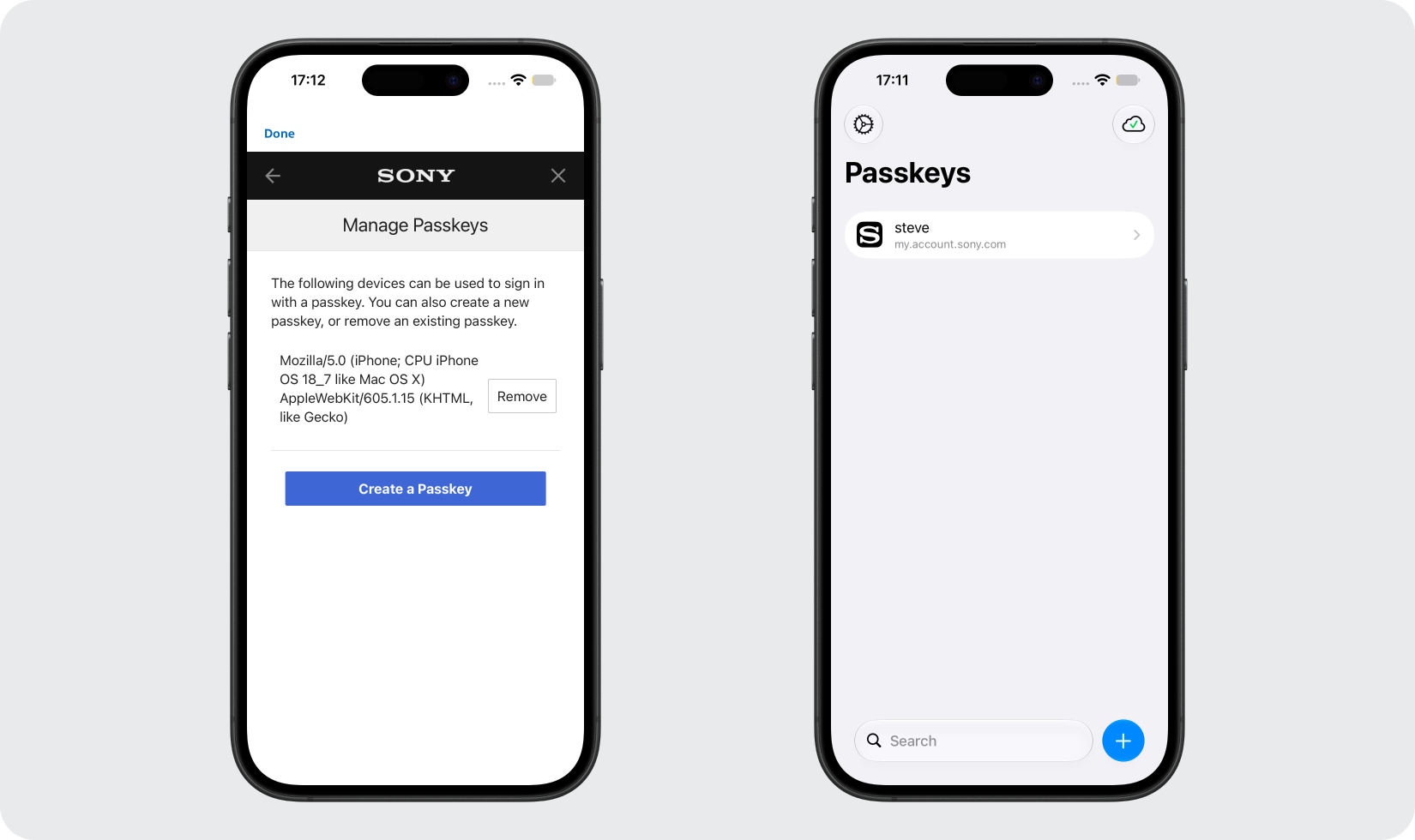
Done!
Congratulations! You have successfully set up your passkey for your PlayStation account. From now on, you can use the Passkeys App when you would like to log in to your PlayStation account.
You're all set! To learn more, visit the PlayStation support page. Stay safe!
The information provided on this page is for educational purposes only and is intended to help users secure their accounts.
2Stable is not affiliated, associated, authorized, endorsed by, or in any way officially connected with PlayStation, or any of its subsidiaries or affiliates.
All product names, trademarks, and registered trademarks mentioned are the property of their respective owners. Their use here is for identification and reference purposes only and does not imply any association or endorsement.
For any legal inquiries or concerns regarding the content of this page, please contact us.