


How to Enable Passkeys for Your X Account#
Enabling a passkey for your X account can provide an additional layer of security. Here are step-by-step instructions on how to do it.
Download Passkeys App
Before you can set up a passkey for your X account, you'll need to download the Passkeys App from the Apple App Store on your phone. You can also click the button below to download it Download on the App Store.


Open Your X Account Settings
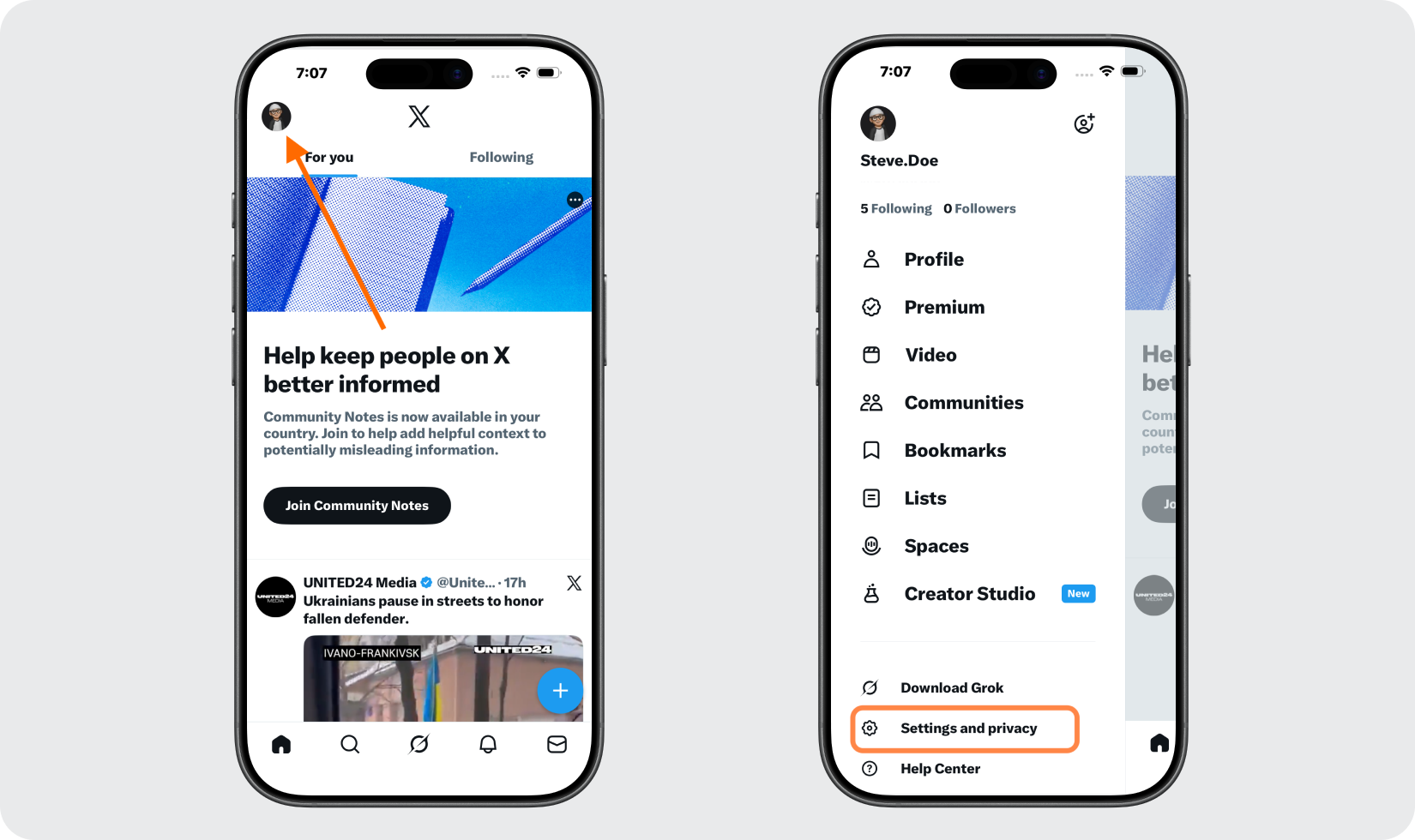
Open the X app and tap your profile picture. Select Settings and privacy from the menu.
Open Your X Security Settings
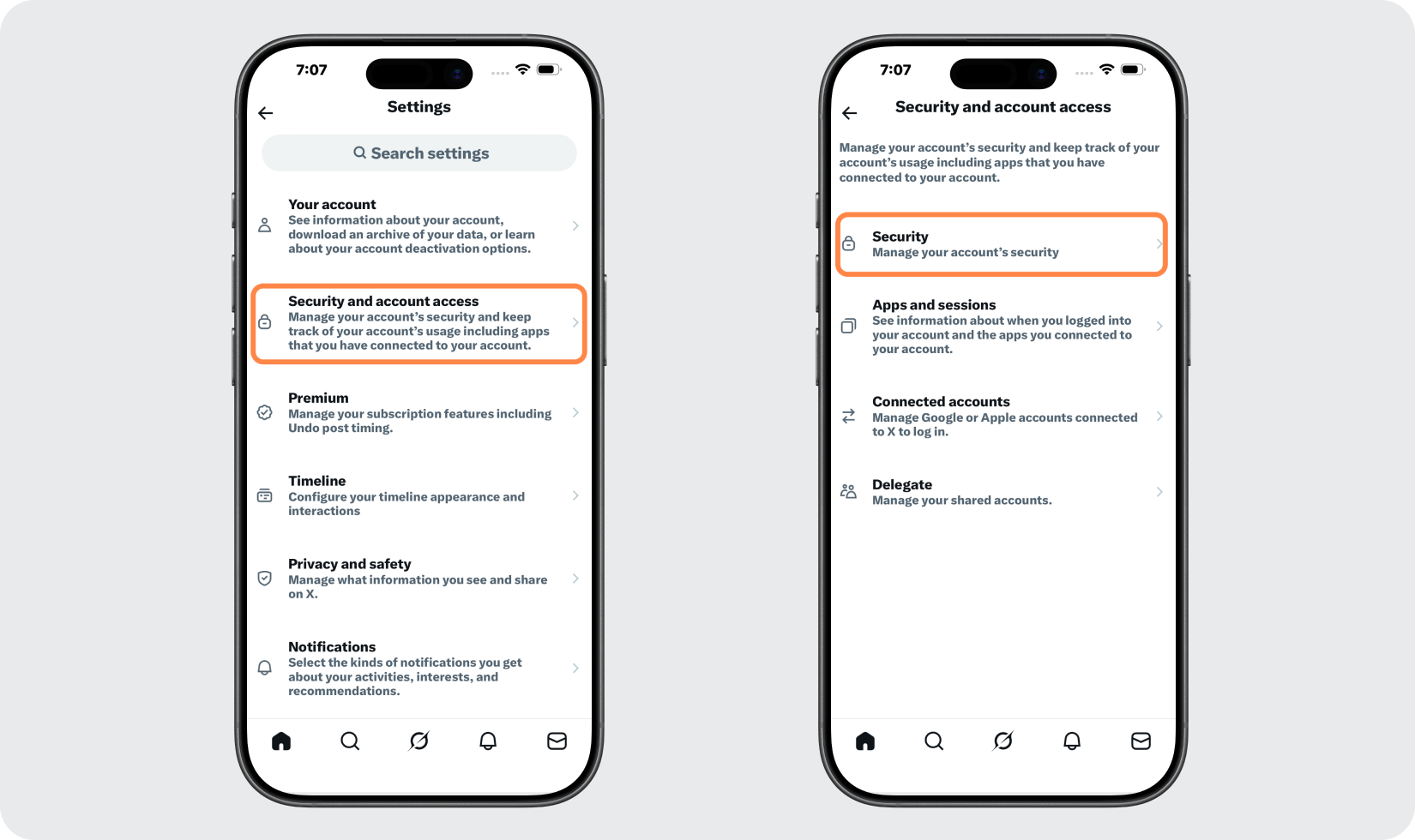
Tap Security and account access, then select Security.
Enable Passkeys
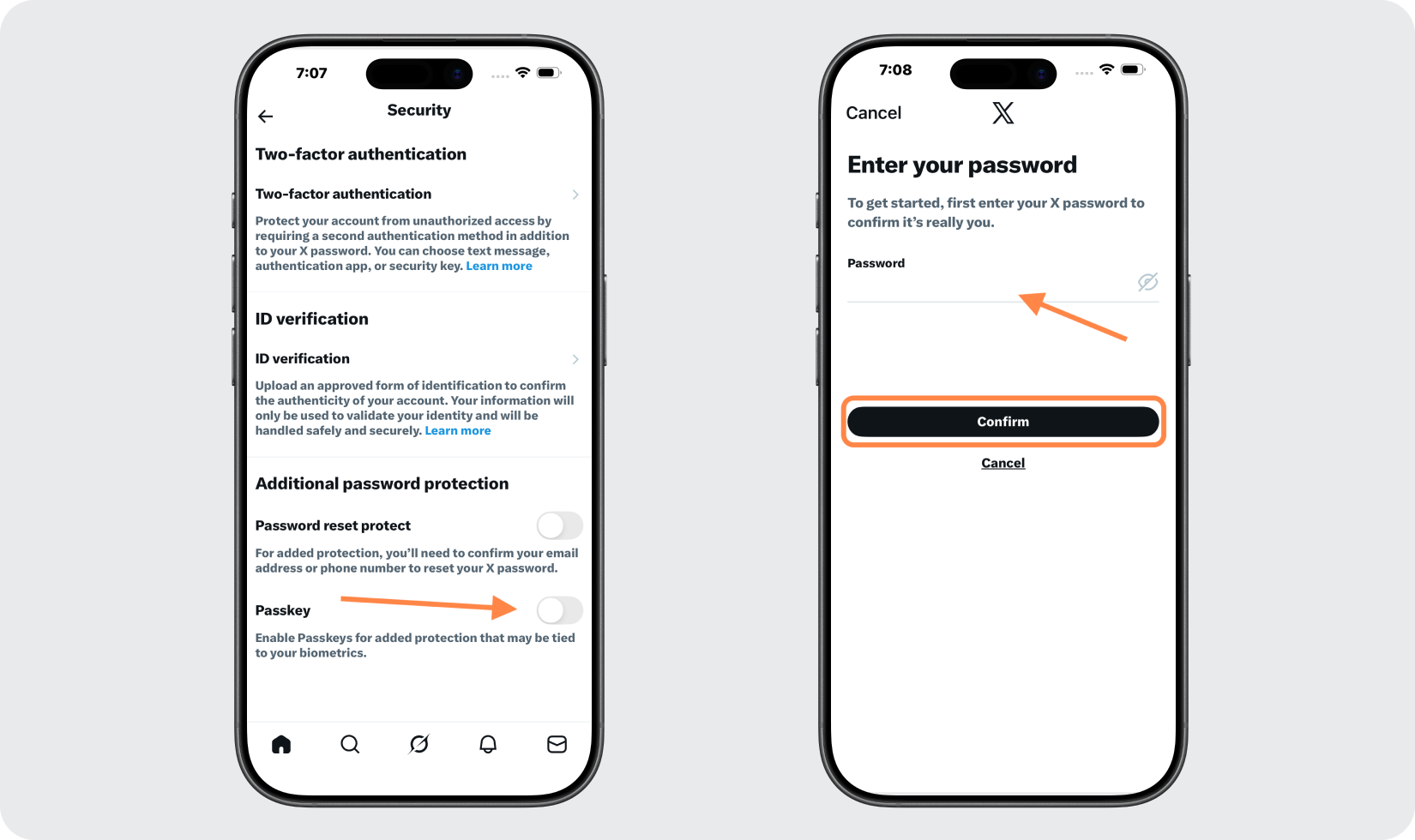
Toggle on the Passkeys option. If prompted, enter your X account password to continue.
Verify & Create Your Passkey
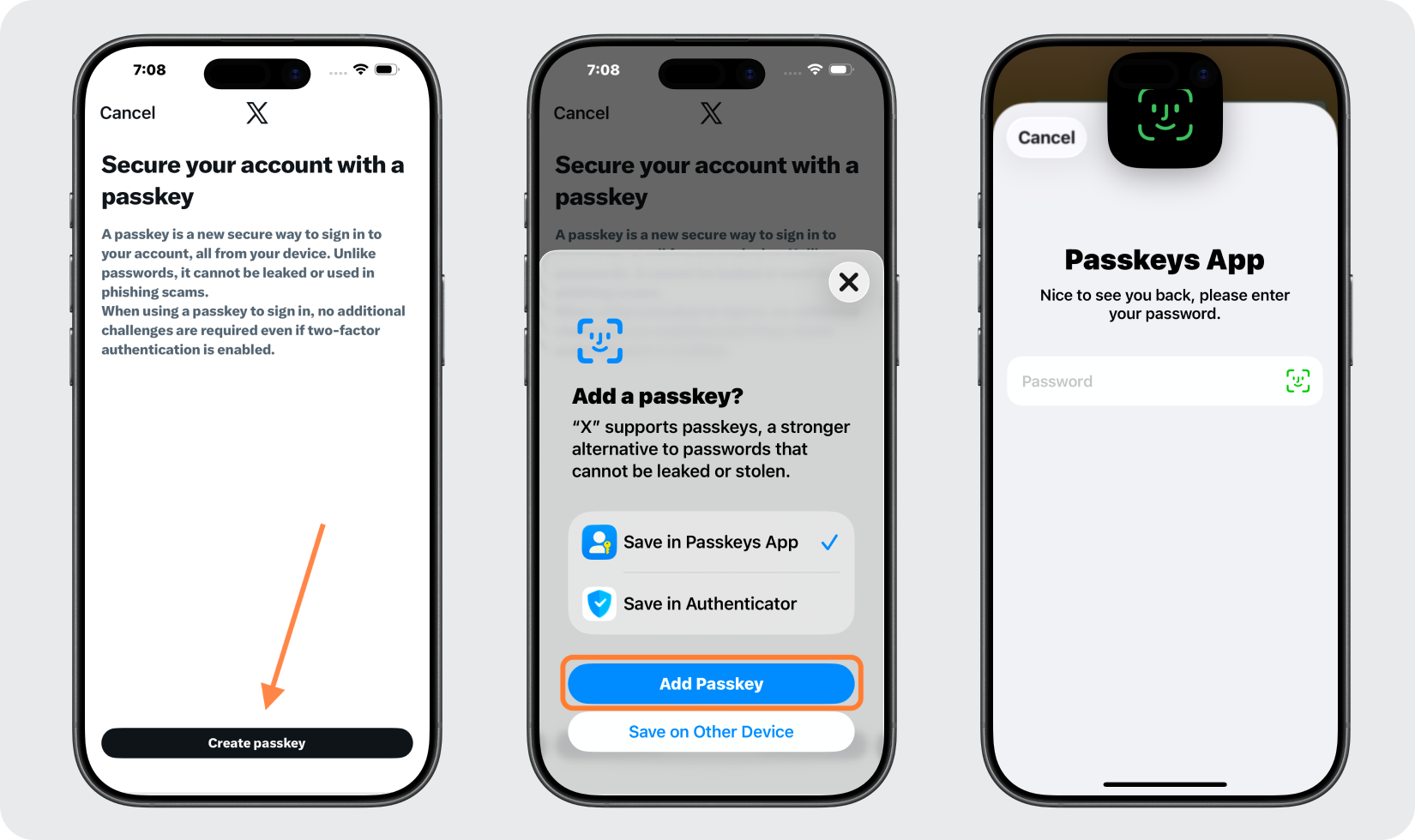
Tap Create passkey, then select Add Passkey. The Passkeys App will launch. Verify your identity using your Passkeys App password, Face ID, or Touch ID. The setup will complete automatically.
Set & Save Your Passkey
Tap Done. The Passkeys option will show as On, and your passkey will be listed inside the Passkeys App.
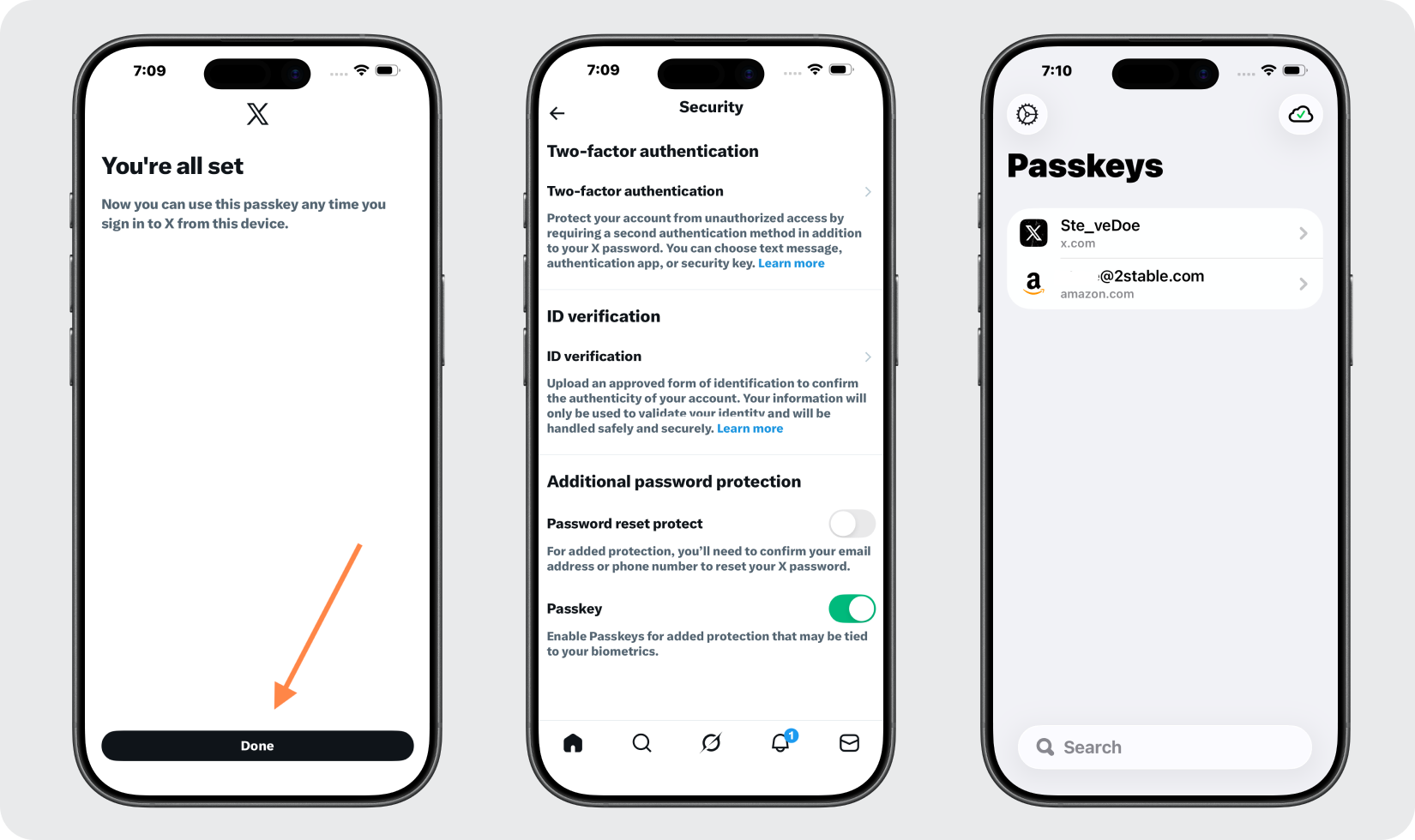
Done!
Congratulations! You have successfully set up your passkey for your X account. From now on, you will need to use the Passkeys App when you would like to log in to your X account.
You're all set! To learn more, visit the X support page. Stay safe!
The information provided on this page is for educational purposes only and is intended to help users secure their accounts.
2Stable is not affiliated, associated, authorized, endorsed by, or in any way officially connected with X, or any of its subsidiaries or affiliates.
All product names, trademarks, and registered trademarks mentioned are the property of their respective owners. Their use here is for identification and reference purposes only and does not imply any association or endorsement.
For any legal inquiries or concerns regarding the content of this page, please contact us.